Quickstart Guide
Welcome! In this tutorial, you’ll install CPS1 locally and learn how to create a new Template containing a Workspace and a Resource, and finally launch an Environment!
1. Prerequisites
Ensure the following tools are installed on your system:
2. Running the installer
For proof-of-concept scenarios, we provide an installation script that installs CPS1 locally, without requiring a Kubernetes cluster.
Run the command bellow in your system:
curl https://helm.cps1.tech/cps1-installer.sh | bash
After the installation finishes, you can access CPS1 at http://cps1.localhost:3001.
For a production grade installation, follow the Production Installation guide.
3. Logging into your CPS1 instance
When a fresh installation is done, there are no users created.
Once you access CPS1 for the first time, it will prompted you to create an Admin user account.
Provide a username and password and you are ready to create your first Template!
4. Creating a Template in CPS1
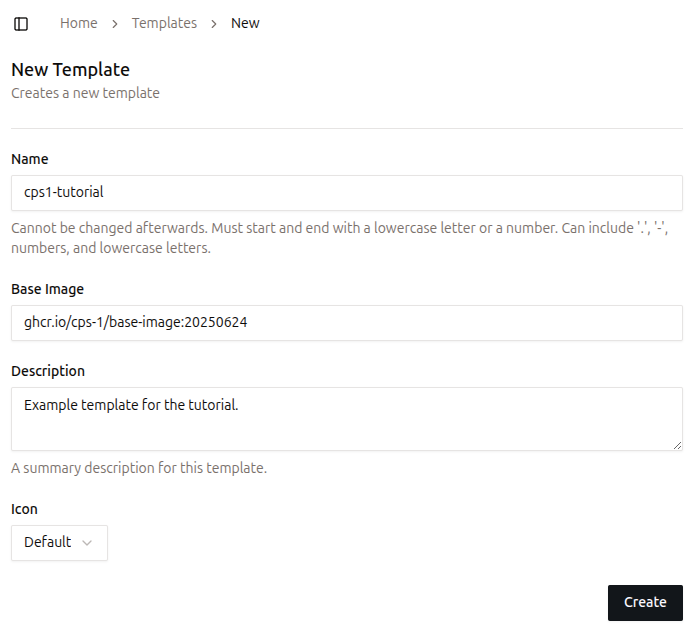
Every Template starts with its Name and some other basic information, like Description and a Icon.
Follow these steps to create a new Template:
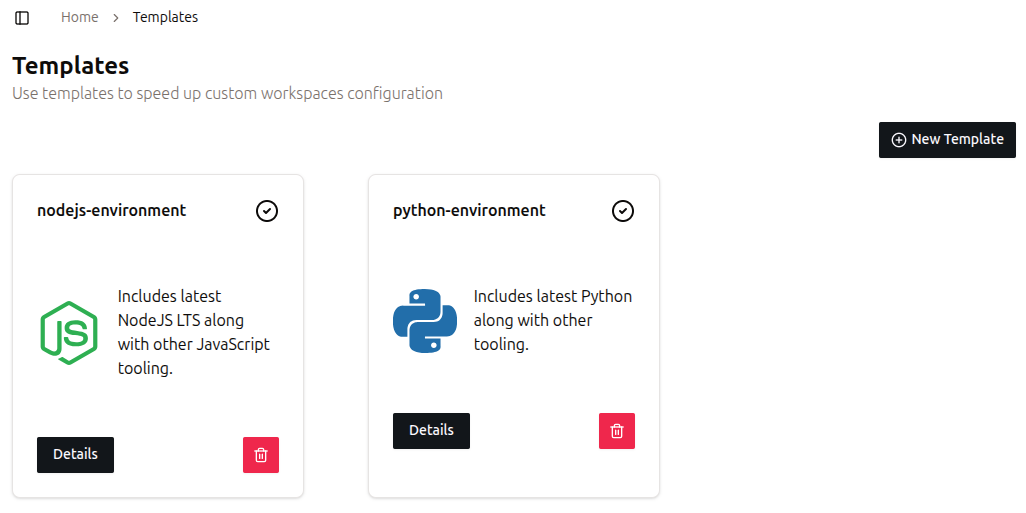
- Navigate to the Templates page
In the left sidebar, under theEnvironmentssection, click onTemplates. - View your existing Templates
The page displays all Templates currently available in your CPS1 instance, as shown below:
- Create a new Template
Click theNew Templatebutton at the top-right of the page. - Fill out the Template form
Provide the following information:- Name: A descriptive name for your Template. Let's use
cps1-tutorial. - Description (optional): Add a short description to help others understand the Template’s purpose.
- Icon (optional): Add an icon URL or SVG data to visually identify the Template.
- Name: A descriptive name for your Template. Let's use
- Save the Template
Click onCreateand you will be taken to the next step for adding a Resource and Workspace.
5. Adding a Resource to the Template
Resources are external dependencies, such as databases, caches, and message brokers.
Follow these steps to add a PostgreSQL database Resource to the cps1-tutorial Template:
- Add a new Resource
Click on
New Resource.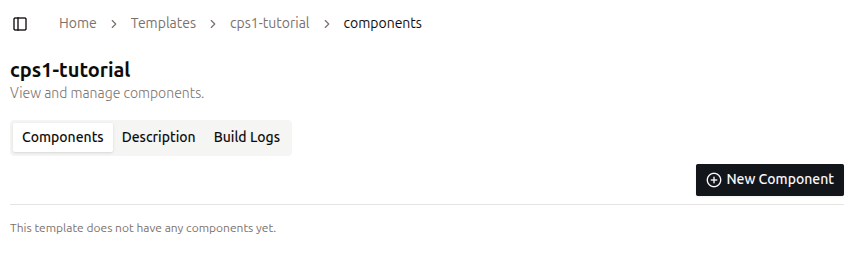
- Select the PostgreSQL Resource
On the Resource list, selectPostgreSQL. - Fill out the ID field
The Resource ID must be simple and short. Let's use
database. - Create the Resource
Scroll down to the bottom and clickCreate. Leave all other fields at their default values.
6. Adding a Workspace to the Template
Developers connect their preferred IDE to a Workspace to write, run, debug, and test code. Also, it is often necessary to expose network ports, so developers can access a running application.
It is defined by three main attributes:
- Code Repository: Provides the source code to be cloned and executed in the Workspace.
- Packages: Install the necessary tools and runtimes into the final Template container image.
- Network Ports: Enable internal and external communication for the Service.
Follow these steps to add a Workspace to the cps1-tutorial Template:
- Add a new Workspace
Click on
New Workspace. - Fill out the ID field
The Workspace ID must be simple and short. Let's use
node-app. - Define a Base Image During the Workspace build process, CPS1 layers your custom configurations on top of this image, enabling consistent and reproducible environments. CPS1 provides a base image that is compatible with many built-in packages. You can leave this as is.
- Code Repository (optional): Git URL to a repository. You can leave it empty. Note: CPS1 requires access to the repository for cloning it. Refer to Git Repository Integration for further instructions.
- Packages
(optional): Select the tools and languages to install. Select
Node.jswith versionv24. - Network Ports
(optional): Specify ports to make accessible from outside the Workspace. Enter
3000. - Define Environment Variables
Add variable names and their values, they will be set on the Workspace. Also, CPS1 native orchestrator is able to output data from a Resource into a Workspace. The demonstration below shows how to perform this mapping.

- Click
Createto start the build process. - Workspace Image build process
CPS1 will build a container image to use as a starting point for new Workspace. You can follow the build process on the
Build Logstab.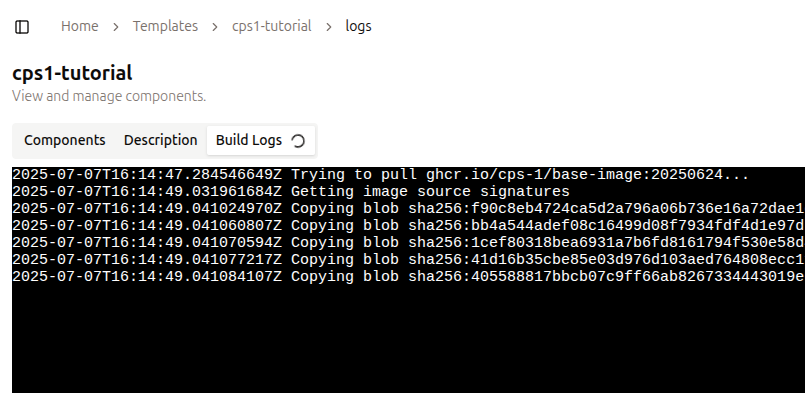
- When the build finishes, move on to create an Environmet.
7. Launch a new Environment
In CPS1, an Environment is created based on a given Template, with many additional capabilities compared to running locally on a developer’s laptop.
An Environment operates entirely on your Kubernetes cluster where CPS1 is deployed. CPS1 manages everything transparently, removing the need for manual Kubernetes management.
Follow these steps to create a new Environment:
- Navigate to the Environments page
Go to theEnvironmentspage in the left sidebar, under theEnvironmentssection. - Create a new Environment
Click theNew Environmentbutton at the top-right of the page. - Choose a Template
Select thecps1-tutorialtemplate on the right side of the page and then click theLaunchbutton at the bottom-right.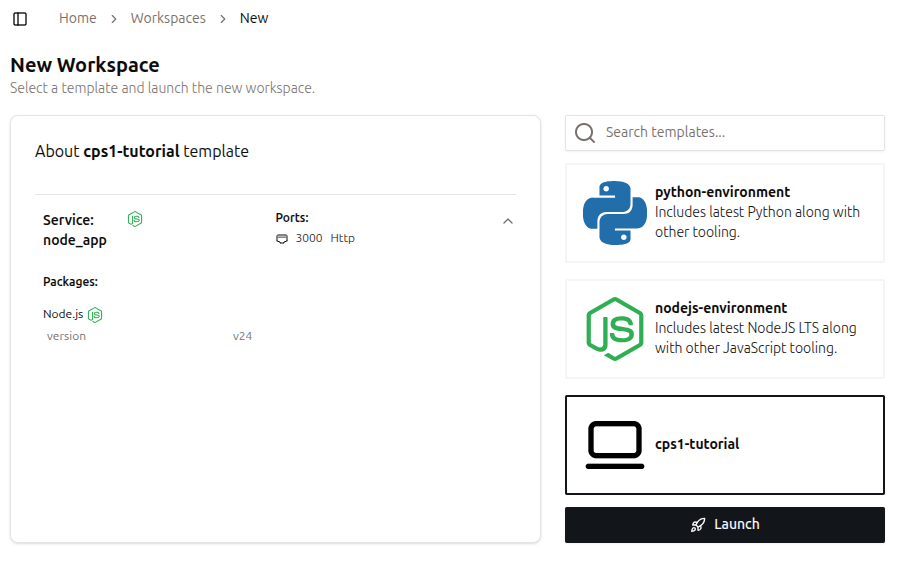
- Environment provisioning
You will be redirected to the Environment detail page, which displays the provisioning progress.
After a few moments, your Environment will be ready to use.
The Workspace is accessible using the integrated Web IDE directly from a web browser or using an SSH connection.
Ports in the Workspace configured to expose network traffic will be accessible via a URL automatically generated by CPS1.
To access the Workspace, navigate to the left of the page, where you can find the workspace control operations:
- Open Web IDE: Opens the Web IDE in a new tab in your browser.
- Access with SSH: Copies an SSH command to the clipboard to access the Workspace.
Navigate to the top-right of the page, where you can find the Environment control operations:
- Pause Environment: Pauses all Workspaces and Resources, stopping all processes. Data is persisted, so this is a safe operation.
- Destroy Environment: Terminates all processes and deletes all data.

Workspace lifecycle
Make sure all your code is committed and pushed to the git repository before destroying a Workspace.
You can disconnect and reconnect to an active Workspace without affecting its running processes.
Additionally, you can stop and restart a Workspace without losing any changes you have made.
If you encounter any issues or have feedback, please open an issue in our repository: https://github.com/cps-1/cps1